
Help Center
Everything you need to know about using Ainterview effectively
Table of Contents
🚀 Getting Started
What is Ainterview?
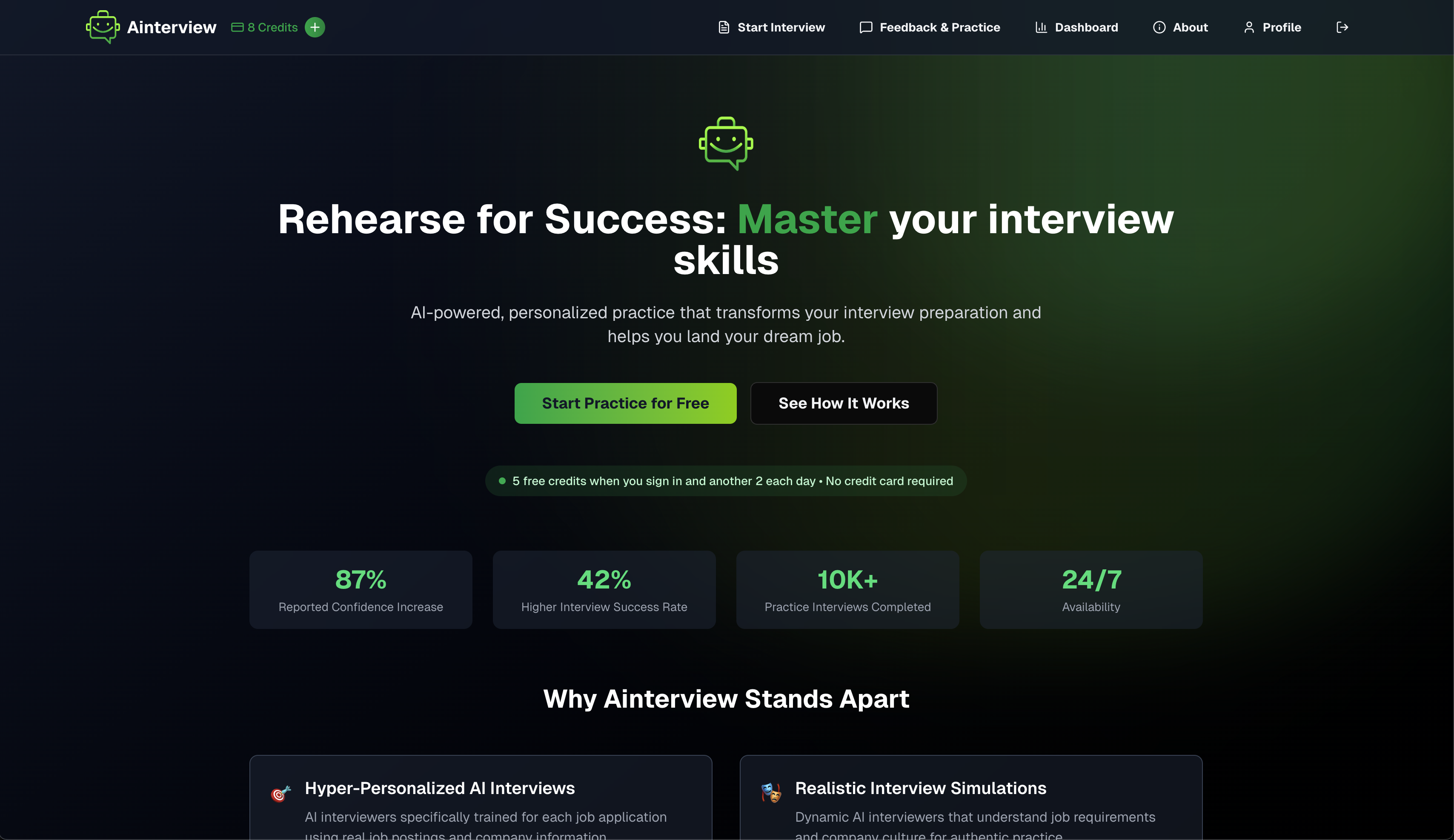
Ainterview is an AI-powered interview preparation platform that provides personalized, realistic interview simulations. Our AI interviewers are trained on real job postings, company information, and your background to create highly relevant practice sessions that mirror actual interview experiences.
Key Features
- •Hyper-Personalized AI Interviews: AI interviewers trained specifically for each job application
- •Realistic Interview Simulations: Dynamic questions based on job requirements and company culture
- •Instant Expert Feedback: Detailed analysis and improvement suggestions after each question
- •Voice-to-Text Recording: Speak your answers for more natural practice
- •Comprehensive Analytics: Track your progress and improvement over time
- •x402 Payment Protocol: Secure blockchain-based payment system
Who Can Use Ainterview?
Ainterview is currently invite-only, but accessible to anyone with an invitation code. The platform serves:
- •Primary: Mid to senior-level tech professionals (2-8 years experience)
- •Secondary: New graduates and early career professionals
- •Tertiary: Career changers transitioning to new industries
🔐 Account Setup and Authentication
Step 1: Access the Platform
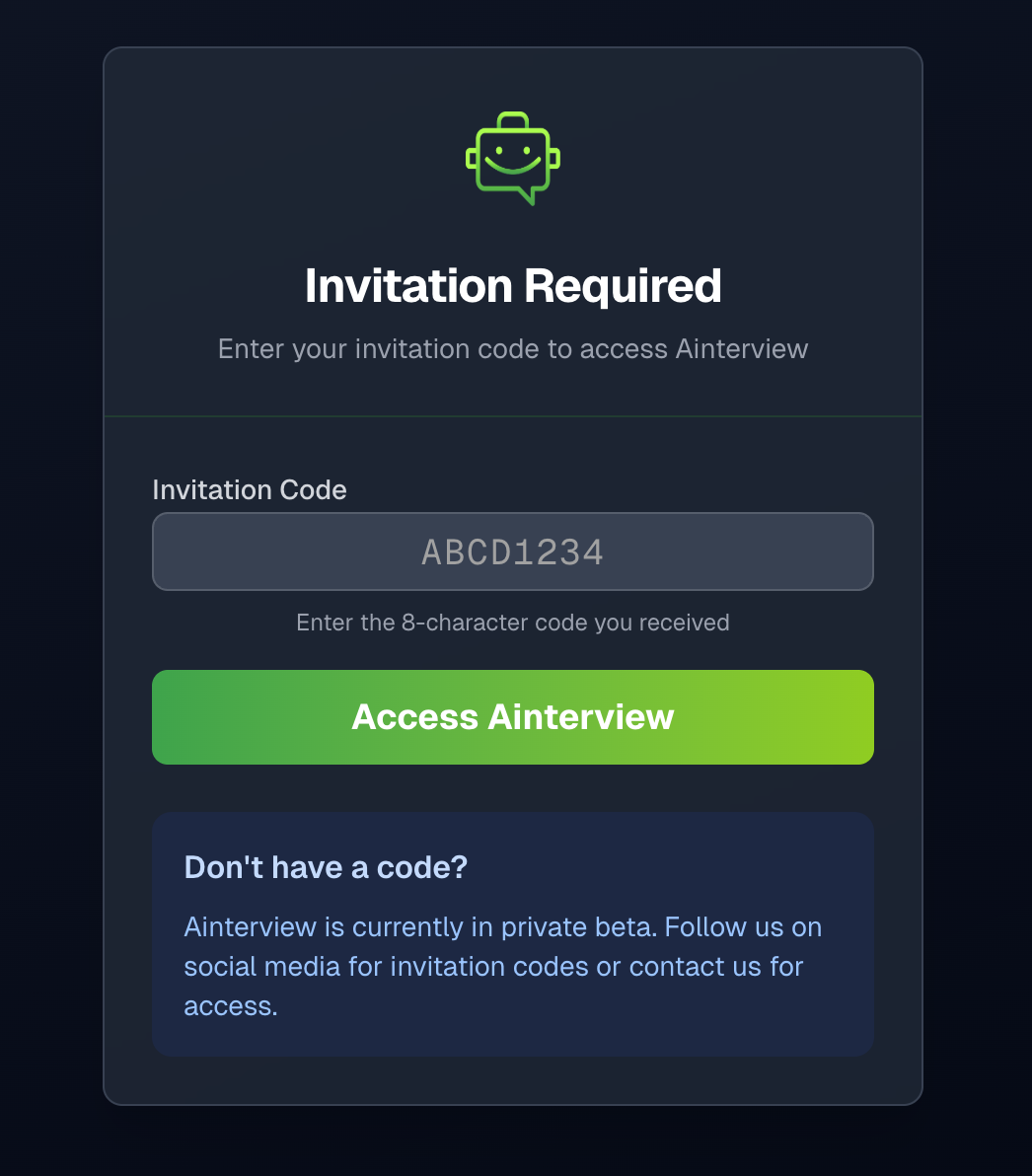
- 1. Visit https://ainterview.app
- 2. You'll be prompted to enter an invitation code
- 3. Find invitation codes in the README.md file on the app's GitHub page
- 4. Enter the code to gain access to the platform
Step 2: Create Your Account
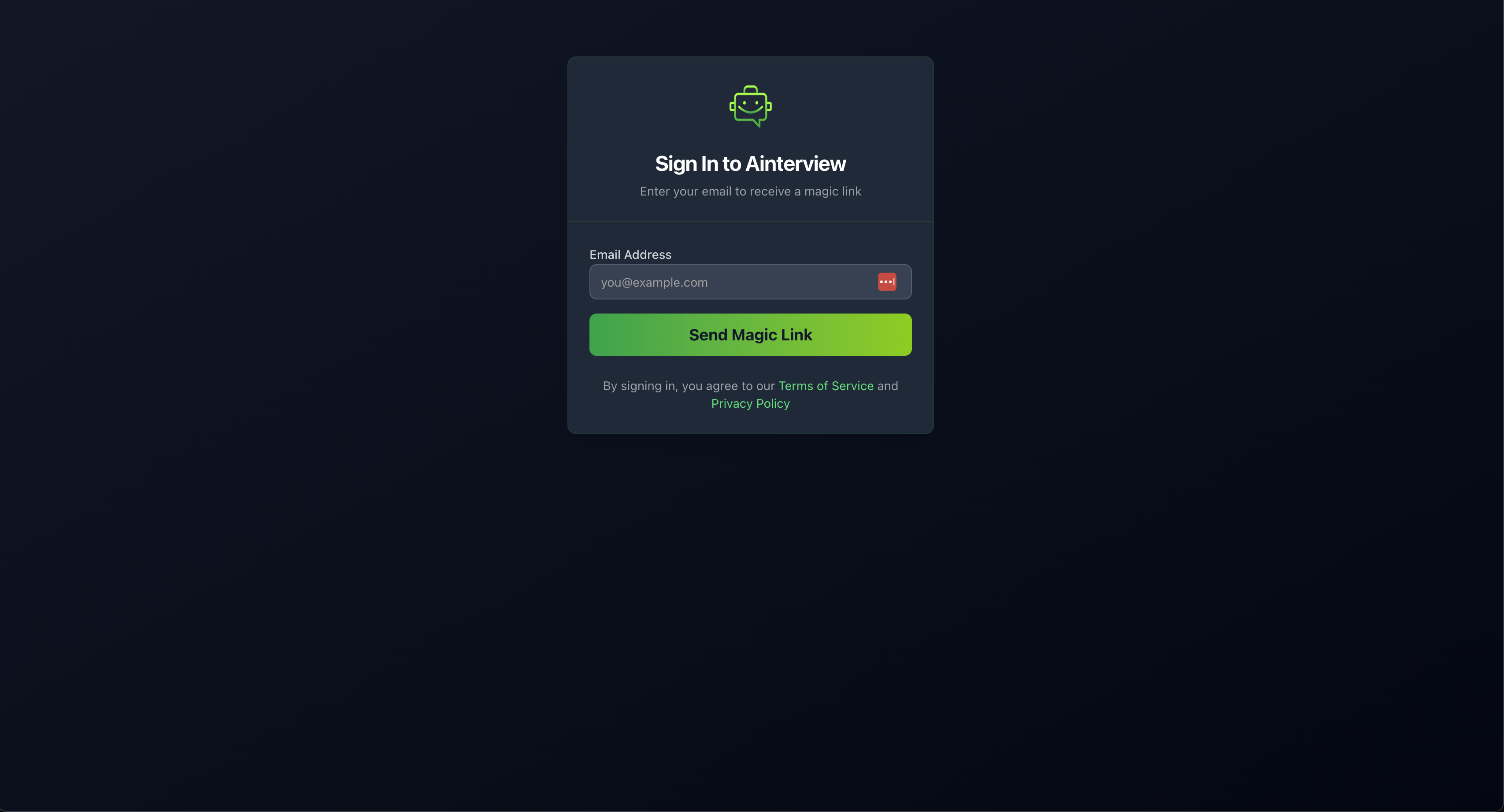
- 1. Email Authentication: Enter your email address
- 2. Email Verification: Check your email and click the verification link
- 3. Initial Setup: Complete the initial account setup process
- 4. Welcome Credits: Receive 5 free credits upon successful registration
Step 3: Daily Credit Claiming
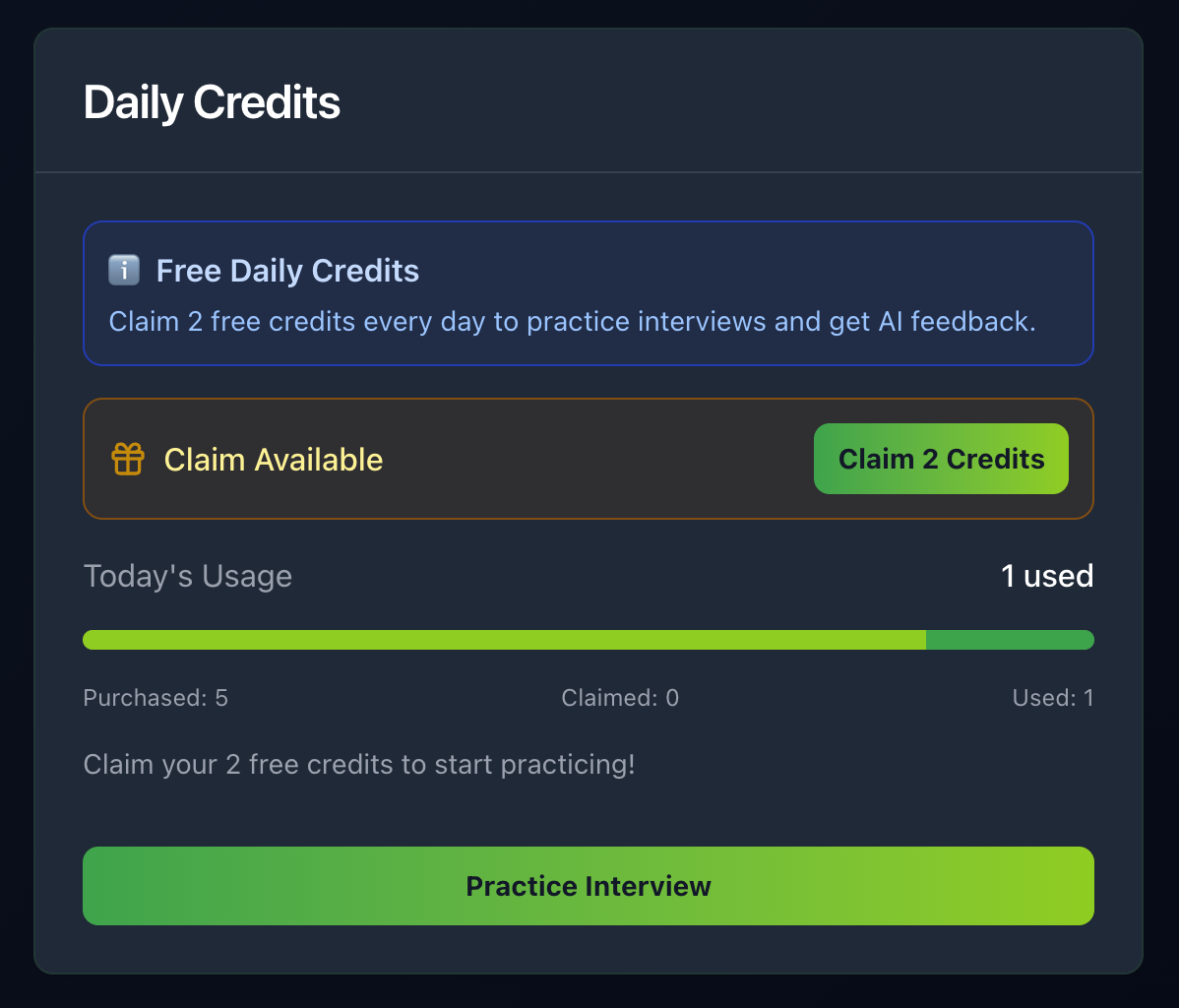
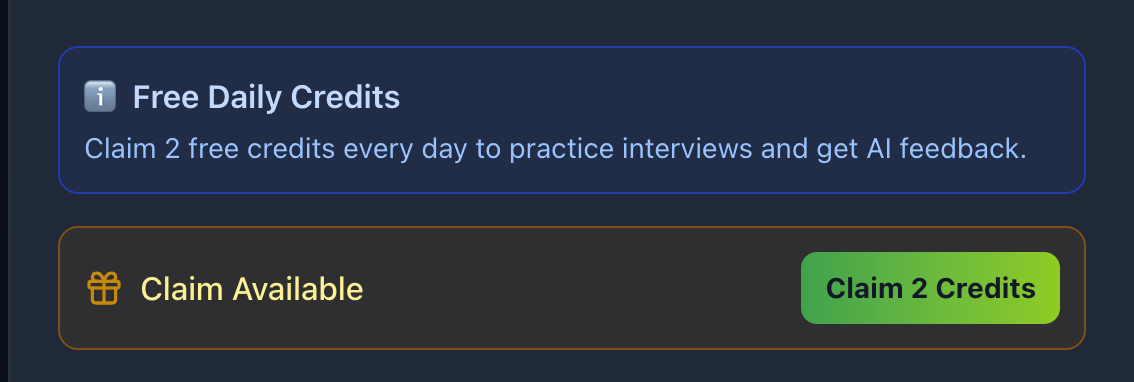
- •Free Daily Credits: Claim 2 additional free credits each day
- •Credit Display: Your current credit balance is shown in the top navigation
👤 Profile Management
Accessing Your Profile
- 1. Click on your profile menu item in the top navigation
- 2. You'll see your current profile information and editing options
Manual Profile Setup
Complete these sections to personalize your interview experience:
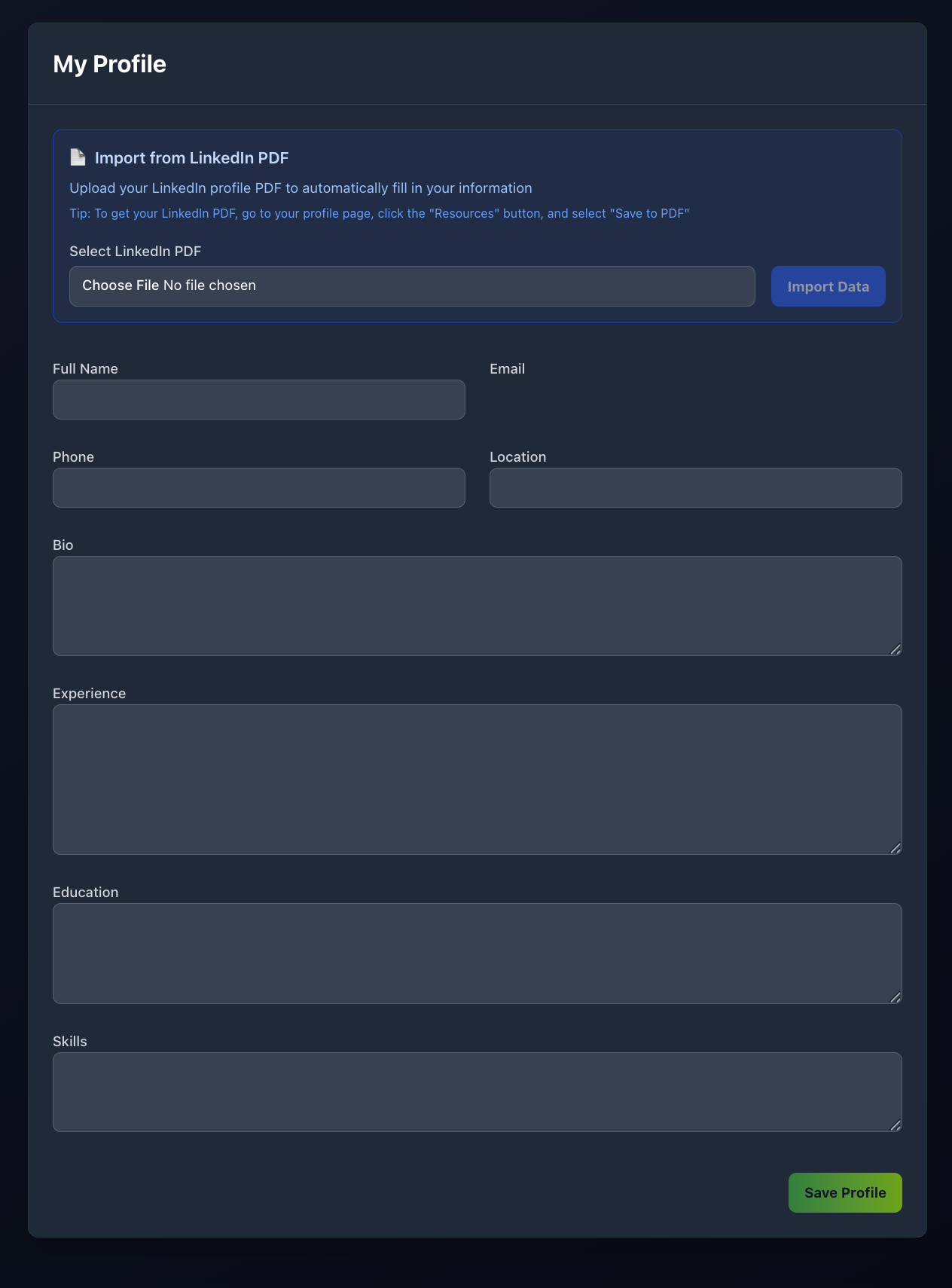
Personal Information
- • Full Name: Your complete legal name
- • Email: Your contact email (auto-populated and non-editable)
- • Phone: Your phone number
- • Location: Your current city and country
Professional Information
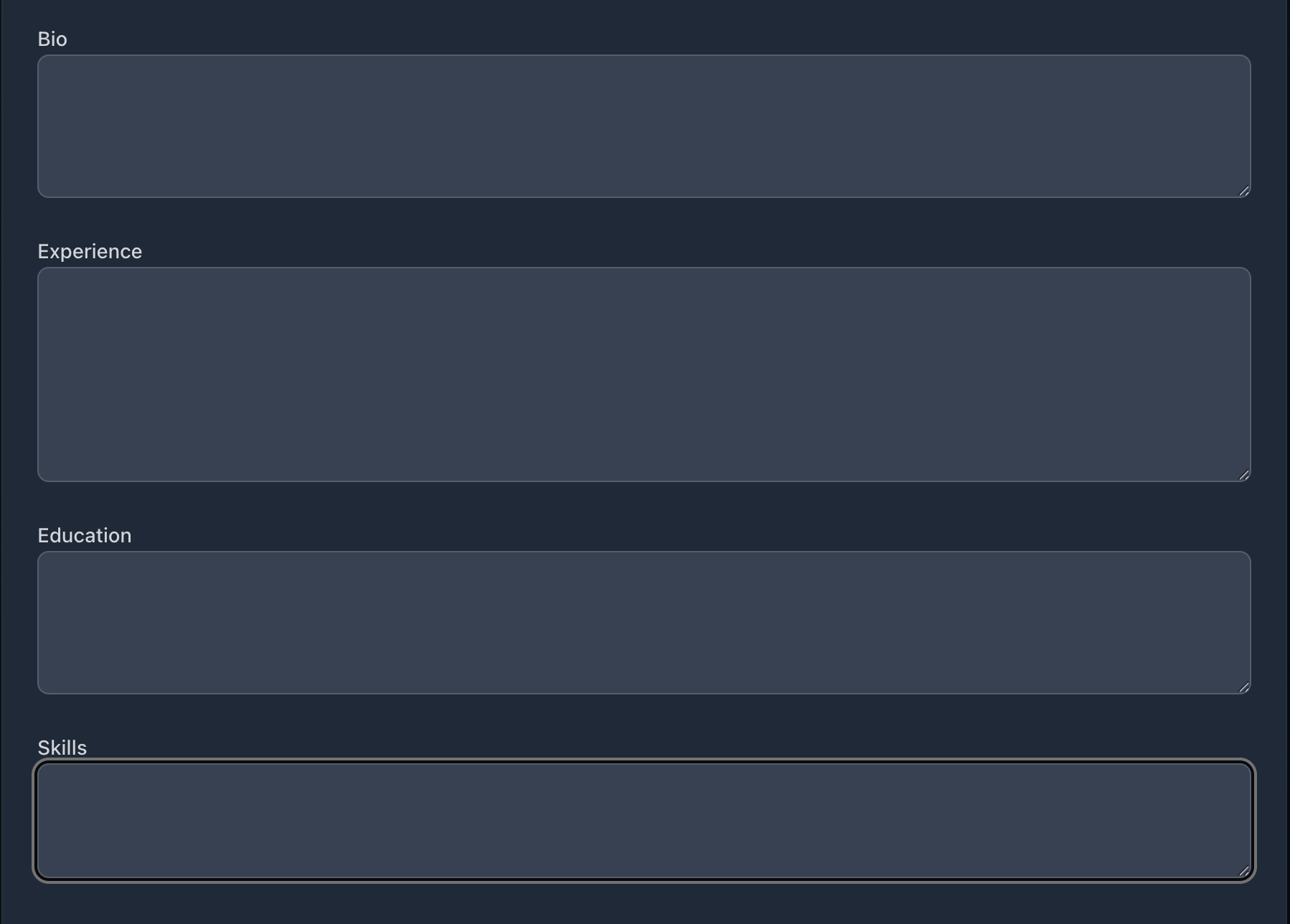
- • Bio: A brief professional summary
- • Experience: Your work history and accomplishments
- • Education: Your educational background
- • Skills: Your technical and professional skills
LinkedIn PDF Import
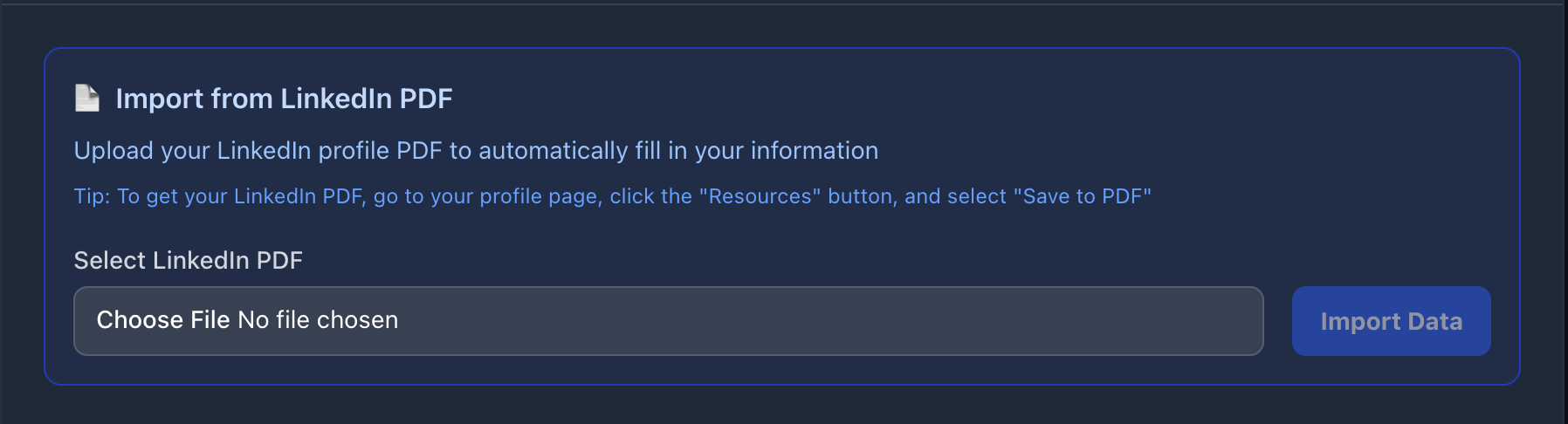
Ainterview can automatically import your profile information from a LinkedIn PDF:
How to Import:
- 1. Export Your LinkedIn Profile:
- • Go to your LinkedIn profile page
- • Click the "Resources" button
- • Select "Save to PDF"
- • Download the generated PDF
- 2. Upload to Ainterview:
- • In your profile page, find the "Import from LinkedIn PDF" section
- • Click "Select LinkedIn PDF" and choose your downloaded file
- • Click "Import Data"
- • Wait for the import to complete
- 3. Review and Edit:
- • The system will auto-populate your profile fields
- • Review the imported information
- • Make any necessary adjustments
- • Click "Save Profile" to confirm
📄 CV Analysis
What is CV Analysis?
Our AI-powered CV Analysis feature evaluates your resume against industry standards and the specific job you're targeting. It provides detailed feedback on content quality, keyword optimization, ATS compatibility, and structural improvements.
Beyond basic spelling and grammar checks, CV Analysis offers actionable insights to make your resume more competitive and tailored to specific job requirements.
How It Works
Analysis Categories
- •Content Quality: Ensures your resume effectively communicates your value proposition and achievements
- •Keyword Optimization: Identifies relevant keywords from the job posting and suggests strategic placement
- •ATS Compatibility: Ensures your resume will pass through Applicant Tracking Systems
- •Structural Analysis: Reviews formatting, layout, and overall presentation
What You'll Get
Detailed Feedback
- • Scores: Overall rating out of 10 across different categories
- • Strengths: What your CV does well
- • Areas for Improvement: Specific recommendations for enhancement
- • Actionable Suggestions: Step-by-step improvements you can implement
Iterative Improvement
Upload multiple versions of your CV to track improvements:
- • Progress Tracking: See how scores improve over time
- • Comparative Analysis: Compare different versions side-by-side
- • Version History: Maintain a record of all CV iterations
Best Practices for CV Analysis
Prepare Your CV
- • Upload PDF Format: Ensure your CV is in PDF format for accurate parsing
- • Complete Information: Include all relevant work experience and achievements
- • Clean Formatting: Use standard fonts and professional layout
- • Job-Specific: Upload the CV you Plan to use for your target position
Optimize Your Results
- • Review Job Posting: Provide the same job posting used for interviews
- • Multiple Iterations: Use feedback to improve and upload new versions
- • Industry-Specific: Consider industry expectations and standards
- • Measurable Achievements: Include quantifiable results and metrics
🎯 Job Fit Assessment
What is Job Fit Assessment?
Job Fit Assessment analyzes your skills, experience, background, and profile against specific job requirements to determine how well you match the position. It identifies gaps, strengths, and provides preparation recommendations to help you become a stronger candidate.
This comprehensive evaluation goes beyond basic resume screening to provide strategic insights for improving your candidacy.
Assessment Process
Comprehensive Analysis
- •Skills Match: Evaluates how your technical and soft skills align with job requirements
- •Experience Alignment: Reviews your career progression and relevant experience
- •Gap Analysis: Identifies areas where you may be missing required qualifications
- •Company Context: Considers organizational culture and values fit
Assessment Results
Fit Score
- • Overall Score: Composite rating out of 10
- • Category Breakdown: Individual scores for different competency areas
- • Strengths Highlight: Areas where you excel for this position
- • Development Areas: Skills and experiences to focus on improving
Preparation Recommendations
- • Skill Building: Specific courses, certifications, or training suggested
- • Experience Enhancement: Ways to gain relevant experience
- • Resume Optimization: Suggestions for highlighting relevant qualifications
- • Interview Preparation: Focus areas for interview practice
Gap Analysis
- • Critical Gaps: Must-have qualifications you're missing
- • Improvement Opportunities: Areas where minor improvements could help
- • Long-term Development: Skills to work towards for career growth
- • Alternative Paths: Suggestions for related positions if this role isn't the best fit
Best Practices for Job Fit Assessment
Getting Started
- • Complete Profile: Ensure your profile information is current and complete
- • Job Posting Details: Provide detailed job requirements and description
- • Honest Assessment: Be candid about your experience and skills
- • Recent Information: Use up-to-date resume and experience details
Interpreting Results
- • Focus on Critiques: Address identified gaps systematically
- • Build on Strengths: Leverage your advantages in interviews
- • Set Realistic Goals: Use recommendations to create development plans
- • Regular Assessment: Re-evaluate fit as you gain new skills and experience
Implementation Strategy
- • Priority Order: Address critical gaps first
- • Quick Wins: Look for changes that create immediate impact
- • Sustainable Development: Focus on long-term skill building
- • Progress Tracking: Monitor improvements over time
💳 Credit System and Payments
Understanding Credits
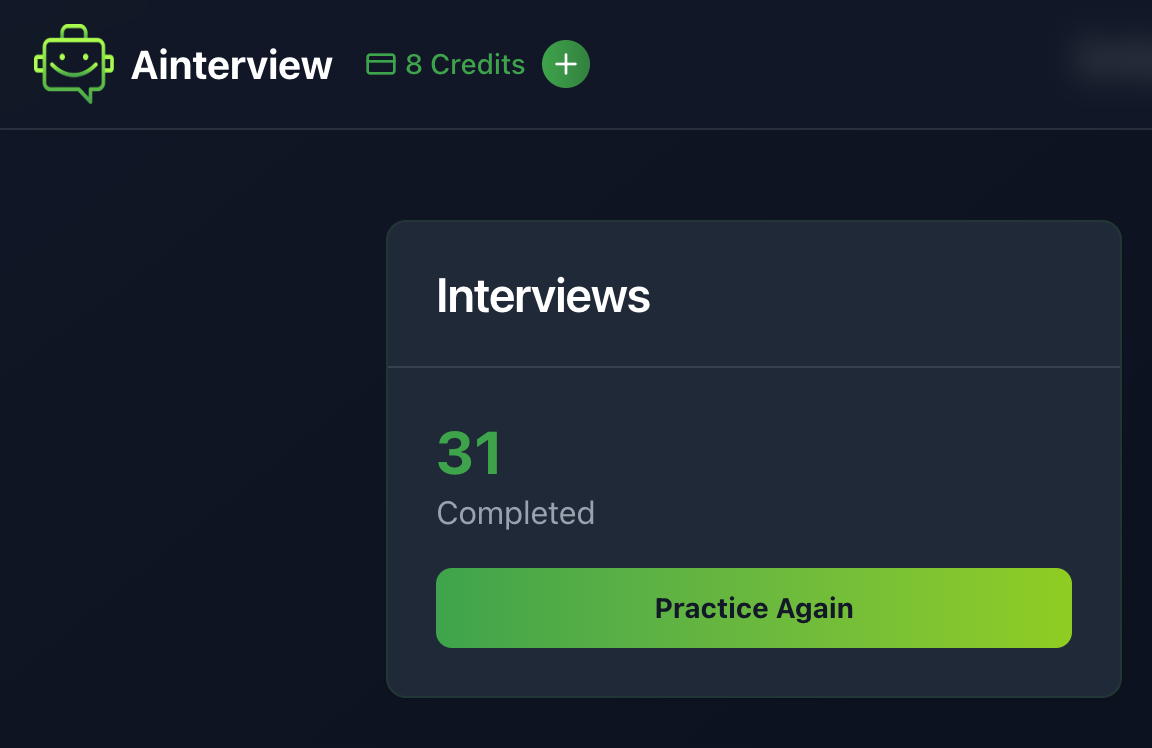
Credits are the currency used for AI interactions in Ainterview:
- • Starting Interview: 5-10 credits (based on number of questions)
- • Re-answering Questions: 1 credit per question
- • Generating Similar Questions: 1 credit per question
Free Credit System
Registration Bonus
- • 5 Free Credits: Given upon successful account registration
- • One-time Benefit: Only available for new users
Daily Free Credits
- • 2 Credits Daily: Available to all users every day
- • Easy Claiming: Click the refresh icon next to your credit display
- • Accrual: Credits accumulate if not claimed daily
Credit Costs by Feature
| Action | Credit Cost |
|---|---|
| Start Interview (5 questions) | 5 credits |
| Start Interview (10 questions) | 10 credits |
| Re-answer Question | 1 credit |
| Practice Similar Question | 1 credit |
| Daily Free Credits | 2 credits |
Credit Balance Display
- • Navigation Bar: Current credit count displayed prominently
- • Color Coding: Green text indicates available credits
- • Refresh Button: Plus icon (+) to claim daily free credits
- • Real-time Updates: Balance updates automatically after transactions
📝 Creating Interview Sessions
Starting a New Interview
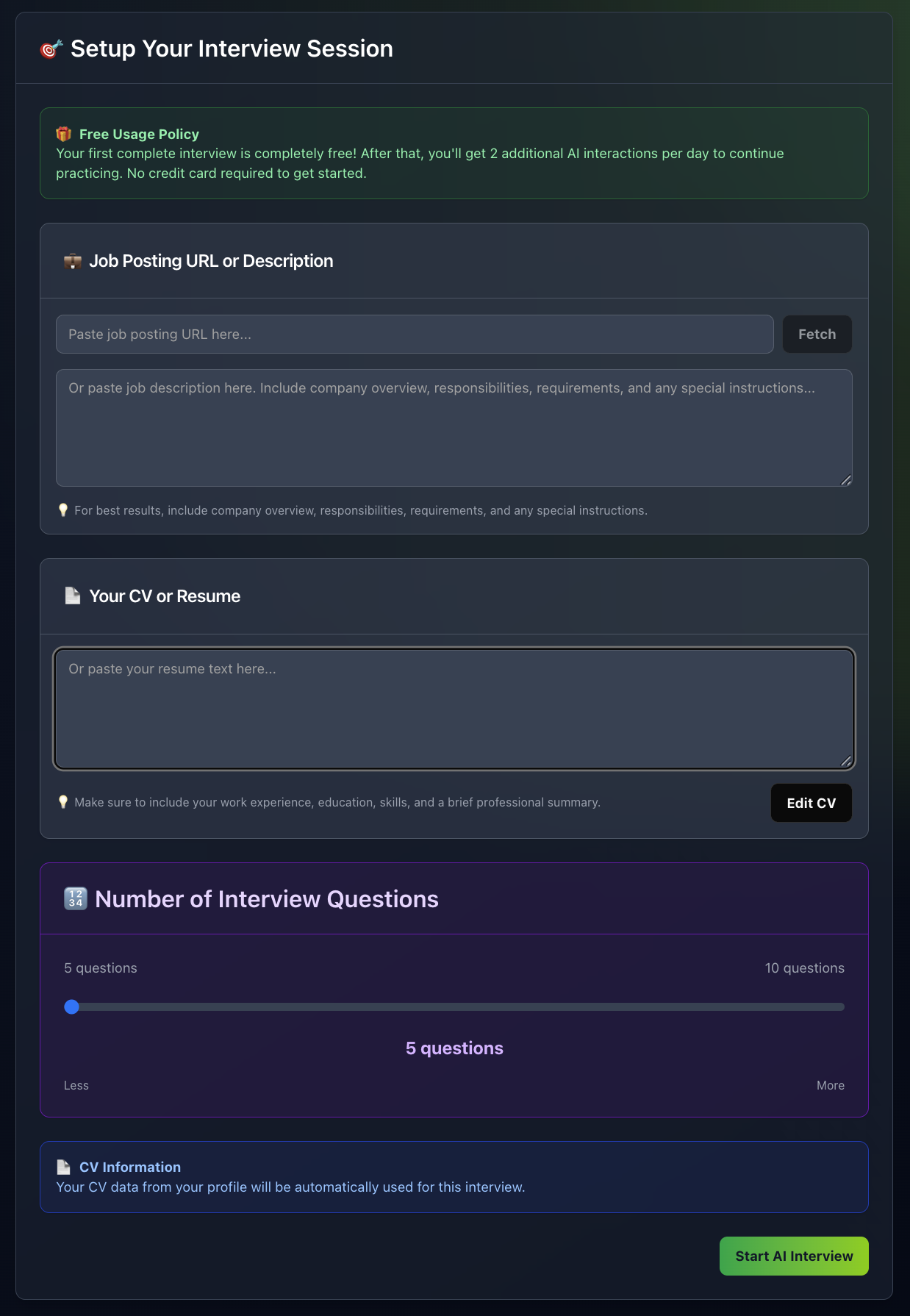
- 1. Navigate to Interview Setup:
- • Click "New Interview" from the dashboard
- • Or go directly to the Interview page
- 2. Enter Job Information:
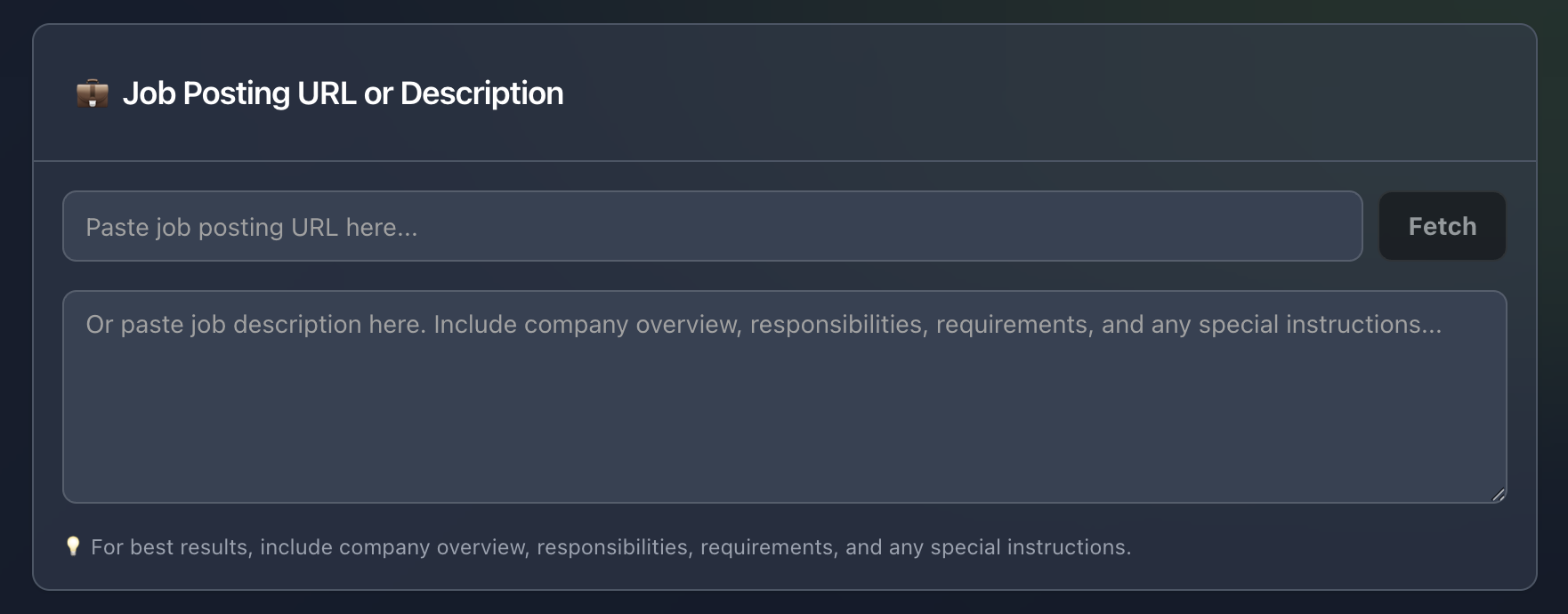
- • Job Title: The specific position you're applying for
- • Company Name: The hiring organization
- • Job Description: Paste the complete job posting
- • Company Information: Any additional company details you know
- 3. Set Your Background:
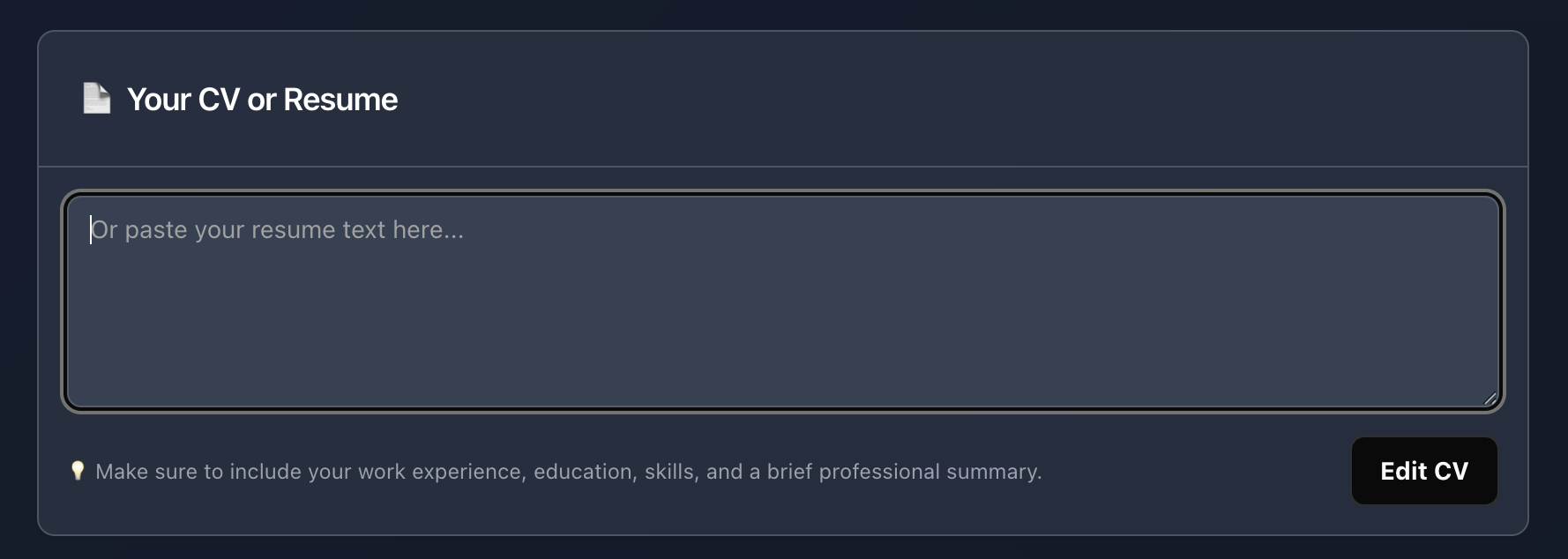
- • Choose between your saved profile or session-only data
- • If using session data, enter your CV information
- • Include relevant experience, skills, and background
- 4. Configure Interview Settings:
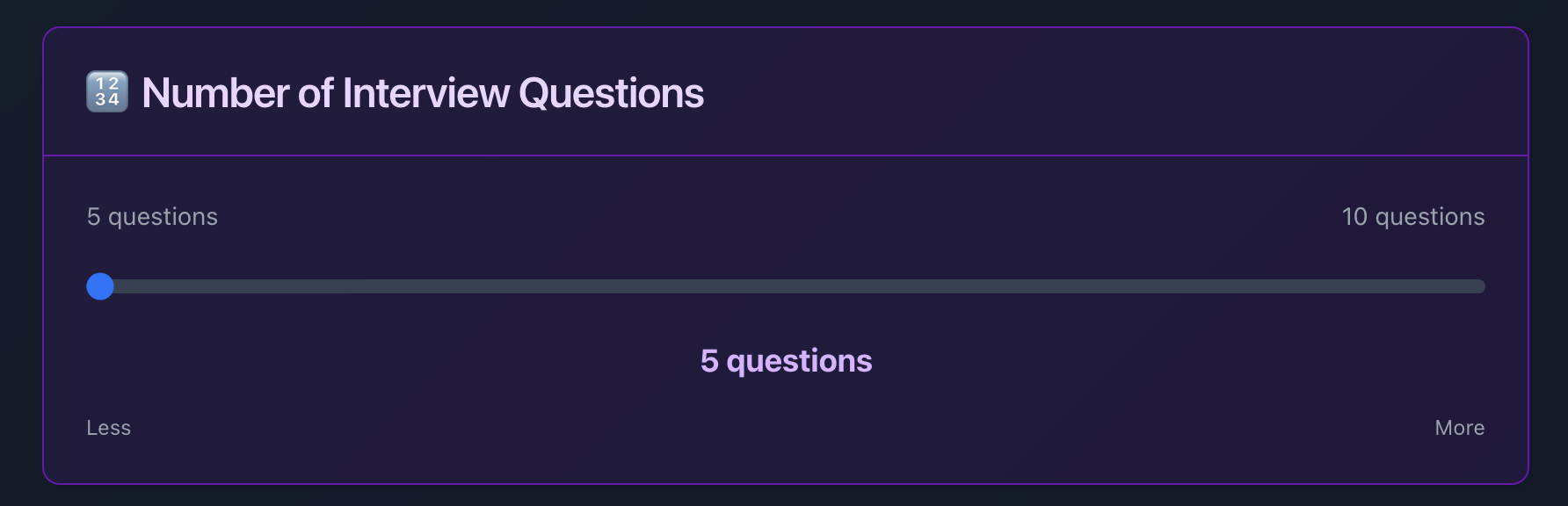
- • Number of Questions: Choose 5 or 10 questions
- • Interview Type: Select the type of role you're preparing for
- • Practice Mode: Optionally enable practice mode for focused training
Job Information Best Practices
Job Description
- • Complete Posting: Include the entire job description
- • Requirements: List all required skills and qualifications
- • Responsibilities: Include key job duties and expectations
- • Company Values: Look for and include company culture information
Company Research
- • Official Website: Visit the company's about page
- • Mission Statement: Understand company values and culture
- • Recent News: Include relevant company developments
- • Industry Position: Note the company's standing in their field
🎤 Conducting Interviews
Interview Interface
Once your interview session starts, you'll see:
Question Display
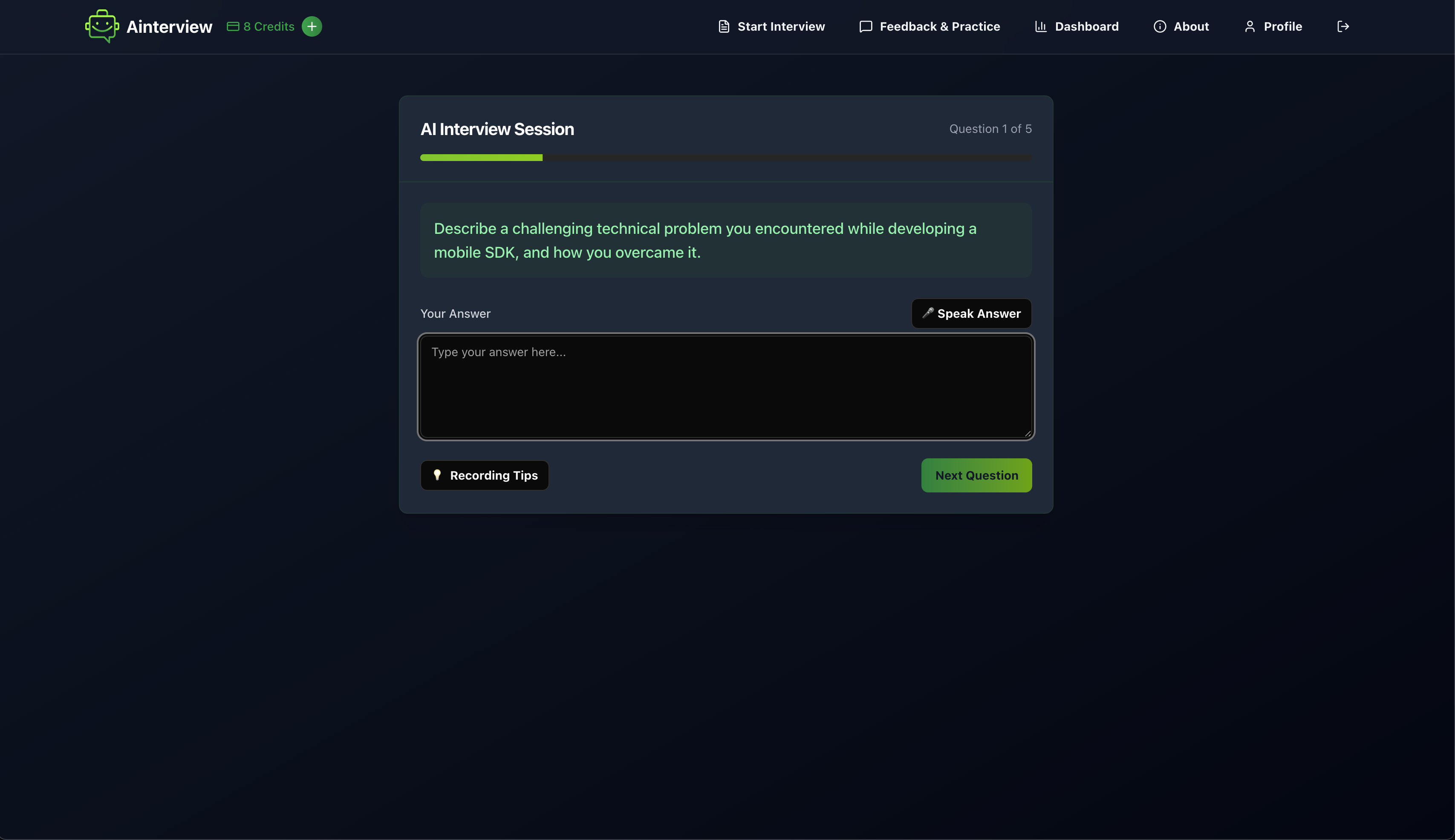
- • Current Question: Prominently displayed in a green-highlighted box
- • Question Progress: Visual progress bar showing completion status
- • Question Counter: "Question X of Y" indicator
Answer Input
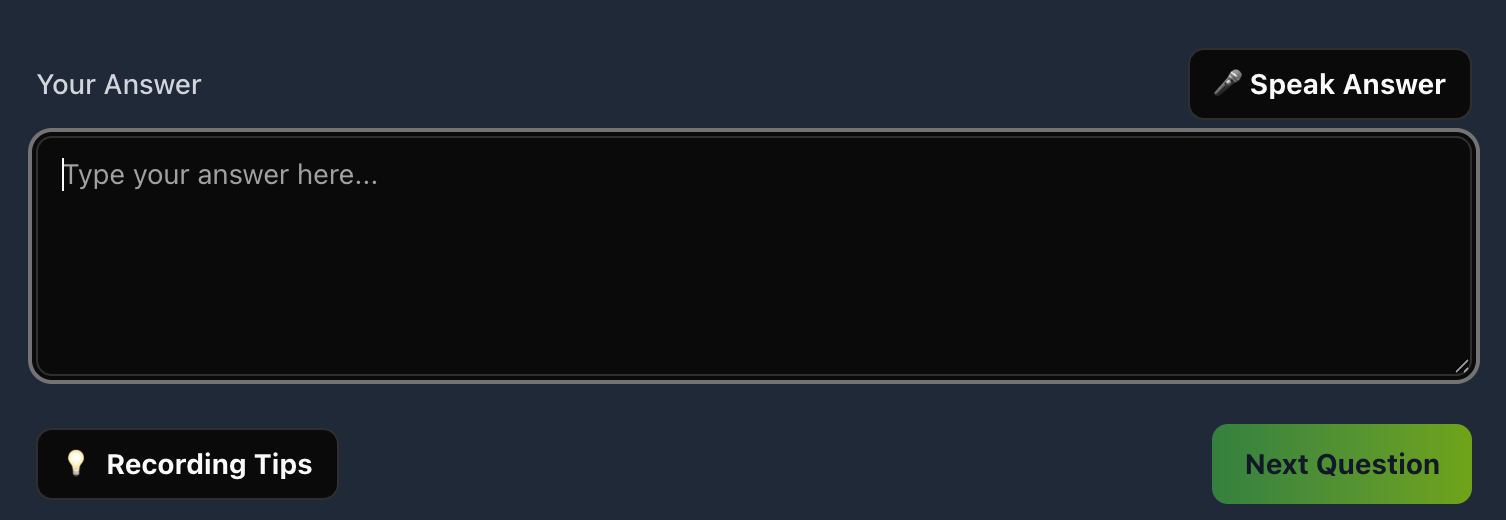
- • Text Area: Large text box for typing your answer
- • Character Limit: No strict limit, but aim for comprehensive responses
- • Auto-save: Your answer is automatically saved as you type
Voice Recording (SOON)
- • Microphone Button: Click to start/stop voice recording
- • Recording Timer: Shows recording duration (max 30 seconds)
- • Audio Quality Tips: Built-in guidance for optimal recording
Answering Questions Effectively
Structured Response Format
Use the STAR method for behavioral questions:
- • Situation: Set the context
- • Task: Describe your responsibility
- • Action: Explain what you did
- • Result: Share the outcome
Answer Length Guidelines
- • Minimum: 2-3 sentences for basic responses
- • Optimal: 1-3 minutes when speaking
- • Maximum: 5 minutes for complex scenarios
Content Best Practices
- • Be Specific: Use concrete examples and metrics
- • Stay Relevant: Connect your experience to the job requirements
- • Show Growth: Demonstrate learning and development
- • Demonstrate Skills: Highlight relevant competencies
🎧 Voice Recording Feature (soon)
How to Use Voice Recording
Starting Recording
- 1. Click the Microphone Button: Look for the 🎤 icon
- 2. Grant Permissions: Allow microphone access when prompted
- 3. Start Speaking: Begin your answer after the beep
- 4. Monitor Duration: Watch the recording timer (max 30 seconds)
Recording Best Practices
Environment Setup
- • Quiet Space: Minimize background noise
- • Good Microphone: Use headphones or a quality microphone
- • Stable Internet: Ensure reliable connection for speech-to-text
Recording Technique
- • Clear Speech: Speak clearly and at moderate pace
- • Professional Tone: Maintain interview-appropriate demeanor
- • Technical Terms: Pronounce technical terms clearly
- • Breathing: Speak naturally with proper pauses
Recording Tips Interface
Access additional guidance by clicking "Recording Tips" during your interview:
- ✓ Find a quiet space with minimal background noise
- ✓ Speak clearly and at a moderate pace
- ✓ Use a good quality microphone (headphones work best)
- ✓ Position yourself close to, but not too close to, the mic
- ✓ Enunciate clearly, especially technical terms
- ✓ Keep answers concise but specific (1-3 minutes typically)
Speech-to-Text Accuracy
What Works Well
- • Clear Pronunciation: Standard English pronunciation
- • Simple Vocabulary: Avoid complex or unusual terms
- • Steady Pace: Consistent speaking speed
- • Good Audio Quality: Clear microphone input
Potential Issues
- • Technical Jargon: May not recognize specialized terms
- • Accents: Heavy accents may reduce accuracy
- • Background Noise: Interferes with speech recognition
- • Fast Speech: Rapid talking reduces accuracy
Manual Text Entry
If voice recording doesn't work well:
- • Switch to Text: Simply type your answer in the text area
- • No Penalty: Text answers receive the same AI analysis
- • Edit Capability: You can type, edit, and refine your response
📊 Feedback and Analytics
Accessing Your Feedback
From Dashboard
- 1. Recent Interviews: View your latest interview sessions
- 2. Feedback Button: Click "View Feedback" on any completed interview
- 3. Performance Metrics: See your overall improvement trends
Direct Access
- 1. Feedback Page: Navigate to the Feedback section
- 2. Interview List: See all your completed interview sessions
- 3. Detailed Analysis: Click on any session for comprehensive feedback
Understanding Your Feedback
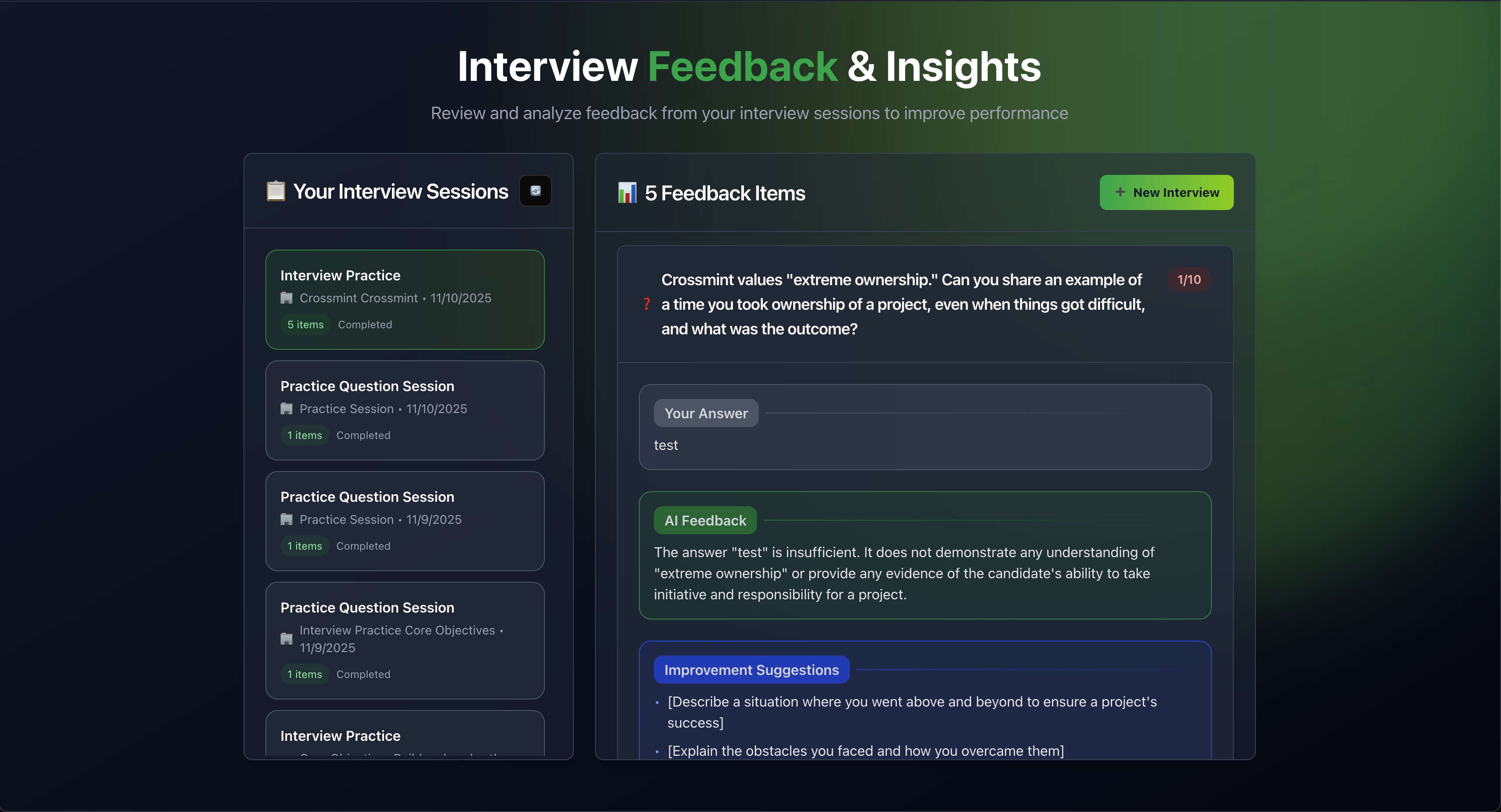
Question-by-Question Analysis
For each question, you'll see:
Your Original Question
- • Question Text: The exact question asked
- • Context: The job and company information used
- • Question Number: Position in the interview sequence
Your Answer
- • Full Response: Complete text of your answer
- • Word Count: Number of words in your response
- • Key Points: Main topics you covered
AI Feedback
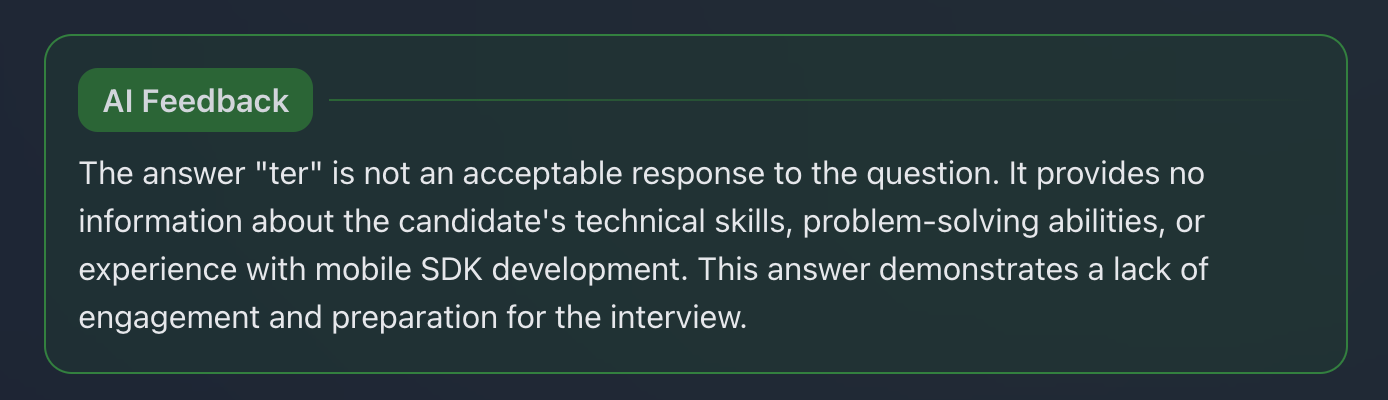
- • Overall Assessment: General evaluation of your answer
- • Strengths: What you did well
- • Areas for Improvement: Specific suggestions for enhancement
- • Rating: Score out of 10 for your response
Improvement Suggestions
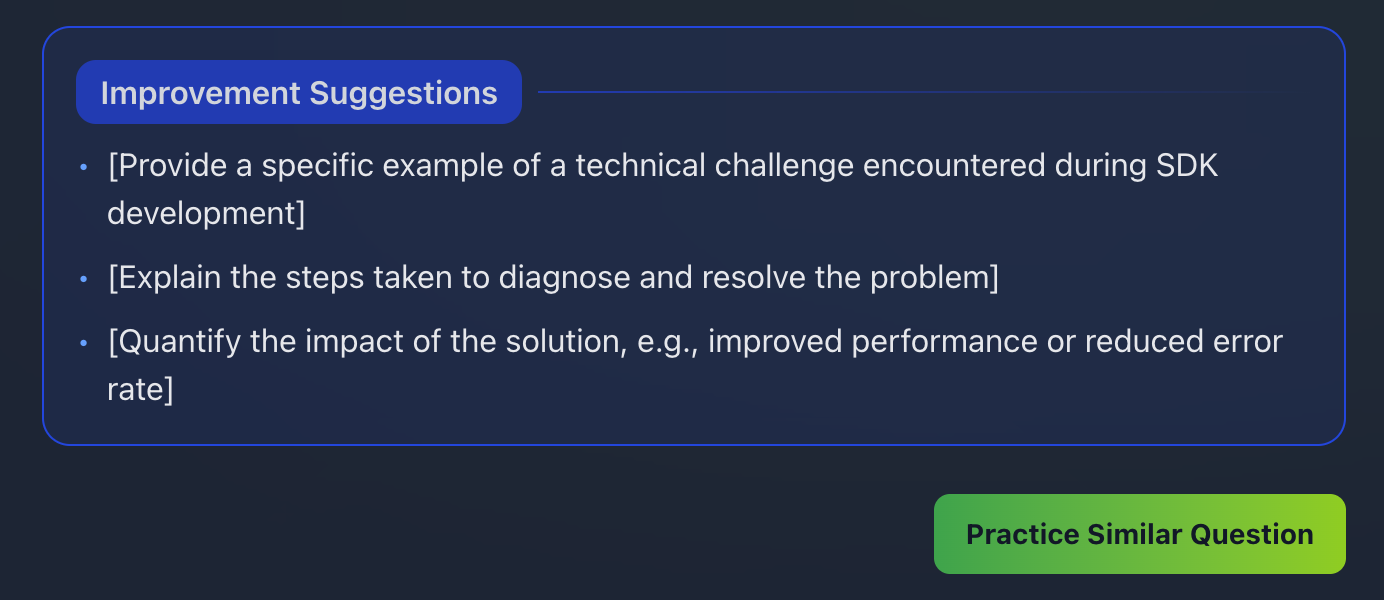
- • Specific Recommendations: Actionable advice for better responses
- • Examples: Suggested improvements with examples
- • Follow-up Questions: Questions you might expect next
- • Skill Development: Areas to focus your preparation
Performance Analytics
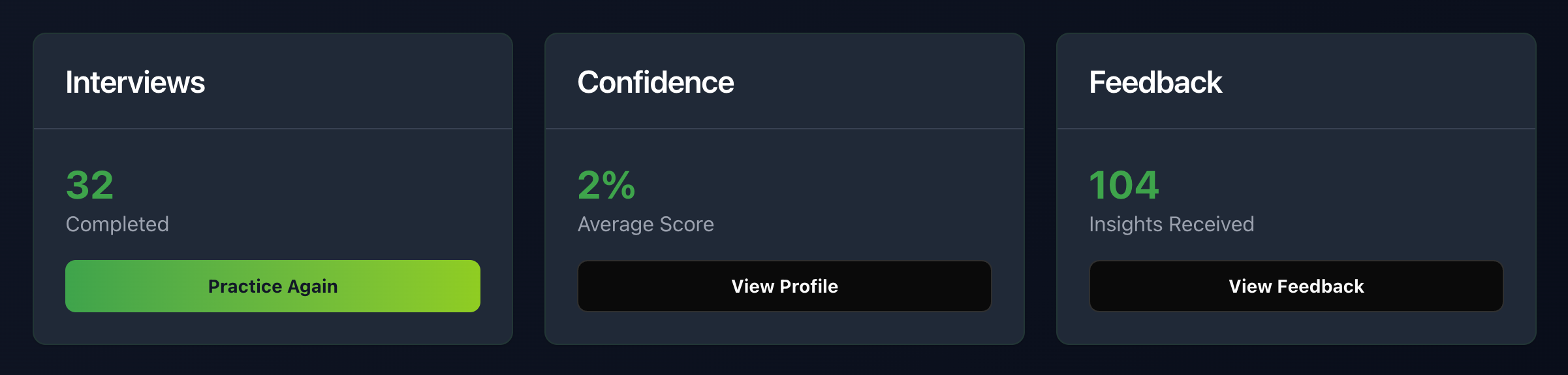
Interview Metrics
- • Total Sessions: Number of interviews completed
- • Questions Answered: Total questions across all sessions
- • Average Rating: Your overall performance score
- • Improvement Trend: How your ratings change over time
Skill Assessment
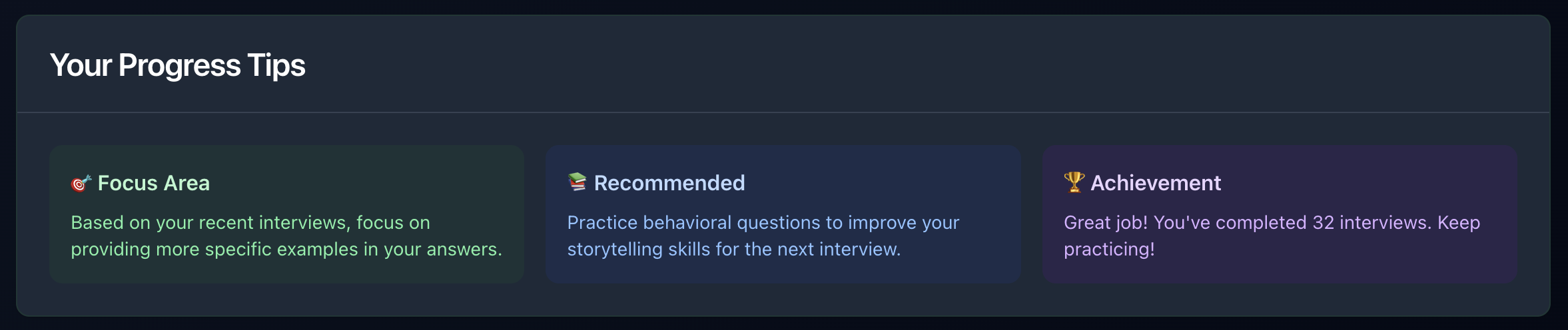
- • Communication: Clarity and structure of responses
- • Relevance: How well you addressed the question
- • Examples: Use of specific, relevant examples
- • Confidence: Overall confidence in your delivery
Progress Tracking
- • Weekly Reports: Performance summaries by week
- • Monthly Trends: Longer-term improvement patterns
- • Goal Setting: Targets for future improvement
- • Achievement Badges: Milestones and accomplishments
🏃 Practice Mode
What is Practice Mode?
Practice mode allows you to focus on specific areas of improvement by generating similar questions to ones you've struggled with in past interviews.
Accessing Practice Mode
From Feedback Page
- 1. Select an Interview: Choose a completed interview session
- 2. Find a Question: Locate the question you want to practice
- 3. Click "Practice Similar Question": Generate a variation
From Interview Session
- 1. During Interview: You can enable practice mode before starting
- 2. Session Settings: Choose practice mode in the interview setup
How Practice Mode Works
Question Generation
- • AI-Powered: Creates similar questions using advanced AI
- • Personalized: Based on your original question and background
- • Relevant: Maintains connection to the job and company context
- • Challenging: Targets the specific skills you need to improve
Practice Session Features
- • Single Question Focus: Practice one question at a time
- • Immediate Feedback: Get instant analysis of your response
- • Credit Efficient: Only costs 1 credit per practice question
- • Progress Tracking: Practice sessions are saved to your history
Practice Mode Best Practices
When to Use Practice Mode
- • After Poor Performance: When you receive low ratings on specific questions
- • Before Important Interviews: To prepare for specific question types
- • Regular Practice: To maintain and improve your skills
- • Skill Development: To work on particular competencies
Effective Practice Strategy
- 1. Identify Weak Areas: Review feedback to find low-scoring topics
- 2. Generate Similar Questions: Create multiple variations
- 3. Practice Regularly: Use practice mode consistently
- 4. Track Improvement: Monitor your progress over time
- 5. Combine with Other Prep: Use alongside other interview preparation
💰 Payment and x402 Protocol
Understanding x402 Payments
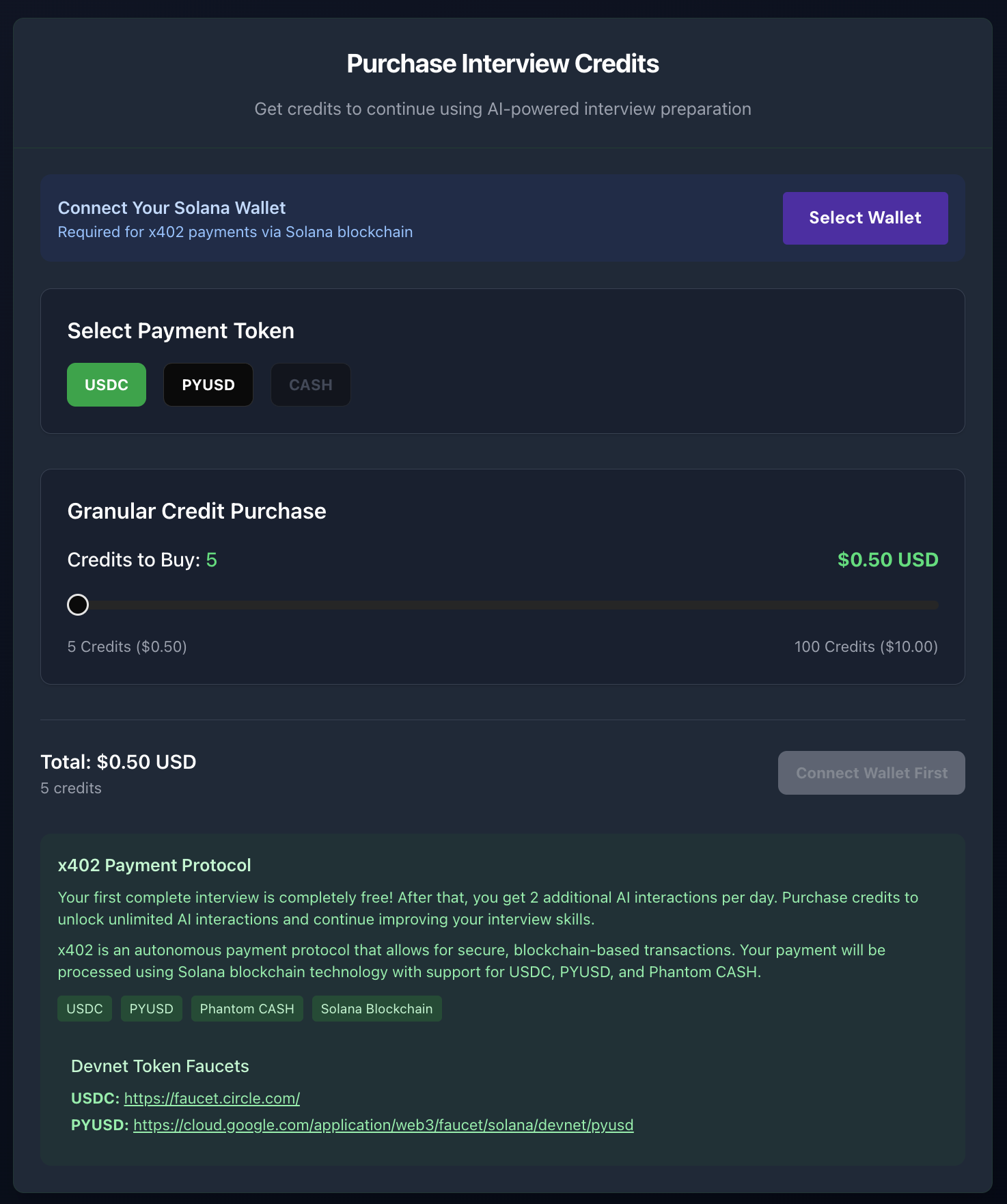
x402 is an innovative payment protocol that enables secure, blockchain-based transactions. Ainterview uses x402 to provide:
- • Instant Payments: Fast transaction processing
- • Low Fees: Minimal transaction costs
- • Global Access: Available worldwide
- • Multiple Tokens: Support for various cryptocurrencies
Supported Payment Tokens
USDC (USD Coin)
- • Stable Value: Pegged to US Dollar
- • Wide Acceptance: Most commonly supported token
- • Easy Purchase: Available on most exchanges
- • Recommended: Best option for most users
PYUSD (PayPal USD)
- • PayPal Integration: Backed by PayPal
- • Dollar-Pegged: Stable value like USDC
- • Growing Support: Increasingly available
- • Alternative Option: Good second choice
CASH (Phantom Cash)
- • Phantom Wallet: Native integration with Phantom wallet
- • Community Driven: Supported by Phantom ecosystem
- • Emerging Token: Newer option with growing adoption
- • Special Access: Available to Phantom wallet users
Making a Payment
Step 1: Access Payment Page
- 1. Insufficient Credits: Click "Buy Credits" when prompted
- 2. Direct Navigation: Go to Payment page from main menu
- 3. Credit Display: Click the plus (+) icon next to your credit count
Step 2: Connect Your Wallet

- 1. Wallet Connection: Click "Connect Wallet" button
- 2. Choose Wallet: Select your Solana-compatible wallet
- 3. Approve Connection: Authorize the connection in your wallet
- 4. Verify Status: Confirm wallet is connected (button will change)
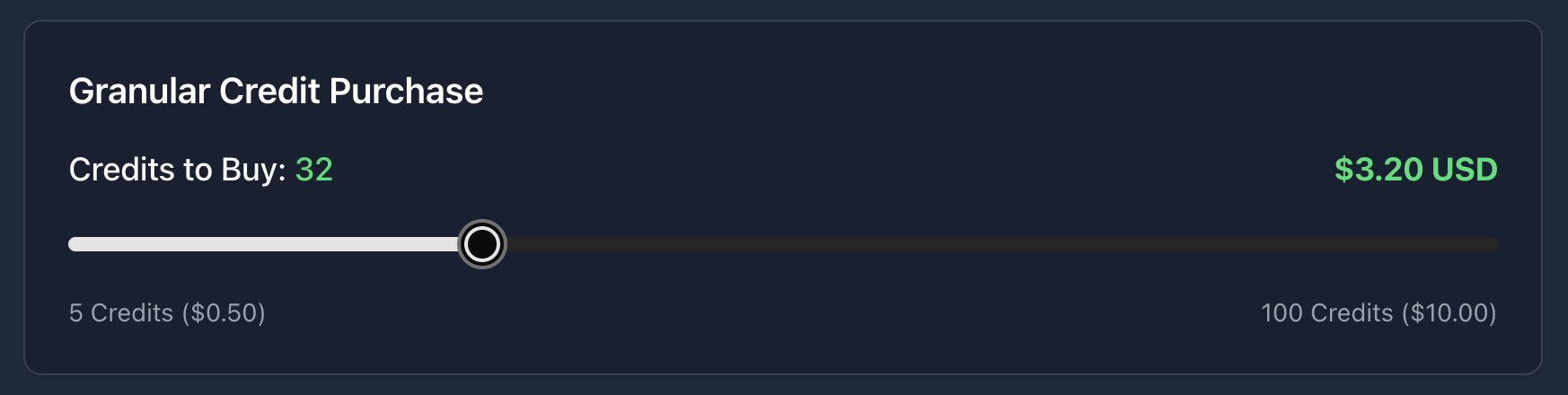
Step 3: Select Payment Details

- 1. Choose Token: Select USDC, PYUSD, or CASH
- 2. Set Credit Amount: Use slider to choose 5-100 credits
- 3. View Cost: See USD amount for your selected credits
- 4. Review Total: Confirm the transaction amount
Step 4: Complete Transaction
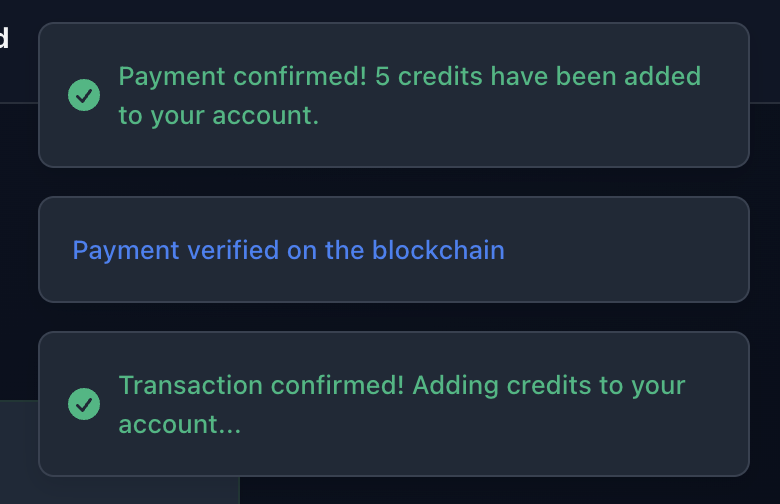
- 1. Click Payment Button: Initiate the blockchain transaction
- 2. Approve in Wallet: Confirm the transaction in your wallet
- 3. Wait for Confirmation: Transaction processing takes 10-30 seconds
- 4. Receive Confirmation: You'll see success message and credit update
Payment Security
Blockchain Verification
- • Transaction Recording: All payments recorded on Solana blockchain
- • Immutable Records: Transactions cannot be altered or reversed
- • Public Verification: Transaction status publicly verifiable
- • Fraud Protection: Built-in security features
x402 Protocol Benefits
- • Autonomous Payments: No intermediary required
- • Global Access: Available anywhere with internet
- • Low Fees: Minimal transaction costs
- • Fast Settlement: Quick payment confirmation
🔧 Troubleshooting
Common Issues and Solutions
Account and Access Issues
Problem: Can't access the platform
- • Solution: Ensure you have a valid invitation code from the README.md
- • Check: Verify the code is entered exactly as shown
- • Support: Contact the development team if codes don't work
Problem: Email verification not working
- • Check: Verify you're using the correct email address
- • Resend: Look for "Resend verification email" option
- • Spam Folder: Check your spam/junk email folder
- • Timeout: Verification links expire after 24 hours
Credit System Issues
Problem: Credits not showing after payment
- • Wait: Allow 30-60 seconds for blockchain confirmation
- • Refresh: Click the refresh icon next to your credit display
- • Check Wallet: Verify transaction was approved in your wallet
- • Support: Contact support if credits don't appear after 5 minutes
Problem: Daily free credits not available
- • Timing: Free credits reset at midnight UTC
- • Claim: Click the refresh icon (+) to claim daily credits
- • Eligibility: Must have used all previous free credits first
- • Account Status: Ensure your account is in good standing
Interview Session Issues
Problem: Interview won't start
- • Credits: Verify you have sufficient credits
- • Profile: Ensure you have entered job posting and CV information
- • Browser: Try refreshing the page or using a different browser
- • Connection: Check your internet connection
Problem: AI not responding
- • Credits: Ensure you have enough credits for AI interactions
- • API Status: Check if there are any service announcements
- • Retry: Wait a moment and try again
- • Support: Contact support for persistent issues
Voice Recording Issues
Problem: Microphone not working
- • Permissions: Check browser permissions for microphone access
- • Hardware: Verify your microphone is working in other applications
- • Browser: Try using Chrome or Firefox for best compatibility
- • HTTPS: Ensure you're using a secure connection (https://)
Problem: Speech-to-text not accurate
- • Environment: Reduce background noise
- • Speaking: Speak clearly and at moderate pace
- • Technical Terms: Consider typing complex technical terms
- • Alternative: Use text input instead of voice recording
Payment Issues
Problem: Wallet not connecting
- • Extension: Ensure wallet browser extension is installed
- • Unlock: Make sure your wallet is unlocked
- • Network: Verify you're on the correct Solana network
- • Refresh: Try refreshing the page and reconnecting
Problem: Transaction failing
- • Balance: Check you have enough tokens and SOL for fees
- • Network: Verify Solana network is functioning
- • Wallet: Try disconnecting and reconnecting your wallet
- • Support: Contact support for failed transactions
Browser Compatibility
Recommended Browsers
- • Chrome: Full feature support, best performance
- • Firefox: Good compatibility, all features work
- • Safari: Good on macOS, some features may be limited
- • Edge: Full support on Windows
Required Features
- • JavaScript: Must be enabled
- • Local Storage: Required for session persistence
- • Microphone Access: Needed for voice recording
- • WebRTC: Required for blockchain wallet connections
For Best Experience
- • Stable Internet: Use reliable broadband connection
- • Updated Browser: Keep your browser updated to latest version
- • Clear Cache: Clear browser cache if experiencing issues
- • Close Tabs: Limit the number of open tabs for better performance
❓ Frequently Asked Questions
General Questions
Q: What makes Ainterview different from other interview prep tools?
A: Ainterview uses AI specifically trained on your target job and company, providing hyper-personalized interview practice. Unlike generic question banks, our AI understands the specific role requirements and company culture you're interviewing for.
Q: How accurate is the AI feedback?
A: Our AI uses advanced language models trained on thousands of successful interview responses. While it's highly accurate, it's designed to be a guide for improvement rather than a definitive assessment. Use it to identify patterns and areas for development.
Q: Can I use Ainterview for any type of interview?
A: Ainterview currently focuses on behavioral and general interview questions. It's excellent for roles requiring communication skills, problem-solving, and cultural fit assessment. Technical role interviews may need additional preparation for role-specific questions.
Credit and Payment Questions
Q: How many credits do I need for a full interview?
A: A standard 5-question interview costs 5 credits, and a 10-question interview costs 10 credits. You also get 2 free credits daily, plus your initial 5 credits when you register.
Q: Do unused credits expire?
A: No, purchased credits do not expire. You can use them anytime. Free daily credits must be claimed each day and cannot be accumulated.
Q: What happens if I run out of credits during an interview?
A: You'll be prompted to purchase more credits to continue. The interview will pause, and you can resume once you have sufficient credits.
Q: Is x402 payment secure?
A: Yes, x402 payments are secured by blockchain technology. All transactions are recorded on the Solana blockchain, making them immutable and publicly verifiable.
Technical Questions
Q: Can I use Ainterview on mobile devices?
A: Ainterview is a Progressive Web App (PWA) that works on mobile browsers. For the best experience, we recommend using a desktop computer, but mobile access is available.
Q: What if I don't want to use voice recording?
A: Voice recording is optional. You can always type your answers in the text area. The AI provides the same quality feedback for both voice and text responses.
Q: How long should my answers be?
A: Aim for 1-3 minutes when speaking or 100-300 words when typing. The AI evaluates content quality over length, so focus on providing comprehensive, relevant responses.
Q: Can I practice with the same job posting multiple times?
A: Yes, you can create multiple interview sessions with the same job posting. Each session will generate different questions, providing varied practice opportunities.
Account and Privacy Questions
Q: How is my data protected?
A: We use industry-standard encryption and security measures. Your personal information and interview responses are stored securely and never shared with third parties.
Q: Can I delete my account and data?
A: Yes, you can request account deletion at any time. All your data will be permanently removed from our systems.
Q: Will my interview responses be used to train the AI?
A: No, your personal interview responses are not used to train the AI. They're only used to provide your personal feedback and analytics.
Q: How do I get the best results from Ainterview?
A:
- 1. Complete your profile with detailed, accurate information
- 2. Research the company and role thoroughly
- 3. Practice regularly, not just before interviews
- 4. Review feedback carefully and implement suggestions
- 5. Use practice mode to focus on weak areas
Troubleshooting Quick Reference
| Issue | Quick Solution |
|---|---|
| Can't access platform | Check invitation code in README.md |
| No credits showing | Refresh page or click credit refresh icon |
| Interview won't start | Verify job posting and CV info are entered |
| Voice not working | Check browser permissions and microphone |
| Payment failing | Ensure wallet connected and sufficient balance |
| AI not responding | Check credit balance and try again |
Support Contact
For additional support:
- • Technical Issues: Check the troubleshooting section above
- • Account Problems: Contact the development team
- • Payment Issues: Verify wallet connection and transaction status
- • Feature Requests: Share your ideas with the development team